# ClickUp API to Google Sheets: A Working Apps Script Guide
Get an API key, page the task endpoint, resolve custom field ids, and stay under 100 requests a minute. Working Apps Script code for every step.
## Key takeaways
- The ClickUp API works on every plan: 100 requests per minute per token on Free, Unlimited and Business, 1,000 on Business Plus and 10,000 on Enterprise.
- A personal API token starts with pk_ and goes in a bare Authorization header, with no Bearer prefix.
- GET /list/{list_id}/task returns 100 tasks per page with no total count, so you keep paging until a page comes back short.
- Without subtasks=true and include_closed=true, the task listing returns parents only and leaves out Done tasks.
- Apps Script stops a single run at 6 minutes on consumer Google accounts, so a large List needs a checkpoint the next trigger resumes from.
The ClickUp API is a REST API at `https://api.clickup.com/api/v2` that takes a token and returns JSON. [ClickUp's own reference](https://developer.clickup.com/reference) documents every endpoint. It doesn't document the shape of a working integration: which parameters you need for the result to match what a person sees in the app, and which ceilings you hit in what order.
This is that, worked through end to end with Google Apps Script as the host, because Apps Script runs inside the spreadsheet on a schedule and costs nothing. The API parts transfer to any language. Only the last 2 sections are Apps Script specific.
## ClickUp API cost
Yes, on every plan. ClickUp sells no separate API tier and gates no endpoint behind a subscription. The plan buys throughput: [the rate limit page](https://developer.clickup.com/docs/rate-limits) gives Free Forever, Unlimited, and Business the same **100 requests per minute per token**, Business Plus 1,000, and Enterprise 10,000. A Free workspace can run everything below. It just runs it slowly against a large List.
2 ClickUp limits get mistaken for API limits. Free Forever caps Custom Fields at 60 uses, so a field you expect in the response may not exist on the task. And the lower plans cap view exports at five, which is usually the reason someone is reading an API guide at all. [The free plan limits](/blog/clickup-free-plan-limits) has the rest of the table.
## Getting a ClickUp API key
For a script only you run, a personal API token is the shortest path. In ClickUp, open your avatar, then **Settings, Apps**, and generate a token. It begins `pk_` and carries every permission your own account has. Anyone holding it can do what you can.
Store it in Script Properties rather than in the code, so it does not travel with a copy of the spreadsheet:
```javascript
// Run once, from the editor, then delete the literal.
function saveToken() {
PropertiesService.getScriptProperties().setProperty("CLICKUP_TOKEN", "pk_...");
}
function token() {
return PropertiesService.getScriptProperties().getProperty("CLICKUP_TOKEN");
}
```
The token goes in a bare `Authorization` header with no `Bearer` prefix, which trips up anyone used to OAuth:
```javascript
function clickupFetch(path) {
const response = UrlFetchApp.fetch("https://api.clickup.com/api/v2" + path, {
headers: { Authorization: token() },
muteHttpExceptions: true,
});
if (response.getResponseCode() === 429) throw new Error("rate limited");
return JSON.parse(response.getContentText());
}
```
If other people will run this, a personal token is the wrong answer, because it acts as you and carries your permissions. That case needs an OAuth app, and OAuth in Apps Script is enough work that it is worth asking whether an off-the-shelf add-on is cheaper than your time.
## Finding the List id
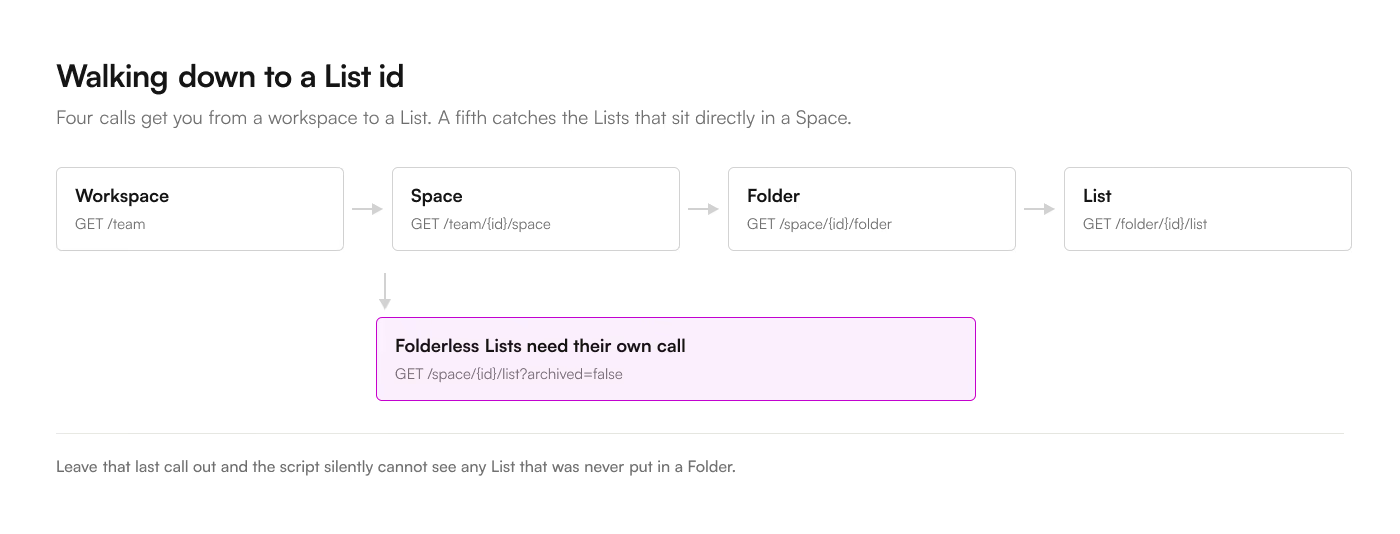
Everything hangs off a List id, and the hierarchy runs Workspace > Space > Folder > List, with Lists allowed to sit directly in a Space.
The quickest route is the URL. Open the List in ClickUp and the address ends in the id: `app.clickup.com/9012345678/v/l/6-901234567890-1`. The middle number of that final segment is the List id.
The programmatic route walks down:
```javascript
const teams = clickupFetch("/team").teams;
const spaces = clickupFetch("/team/" + teams[0].id + "/space?archived=false").spaces;
const folders = clickupFetch("/space/" + spaces[0].id + "/folder?archived=false").folders;
const lists = clickupFetch("/folder/" + folders[0].id + "/list?archived=false").lists;
// Folderless Lists need a separate call:
const loose = clickupFetch("/space/" + spaces[0].id + "/list?archived=false").lists;
```
That last line is easy to forget and produces a script that silently cannot see a third of the workspace.
 ## The pagination loop
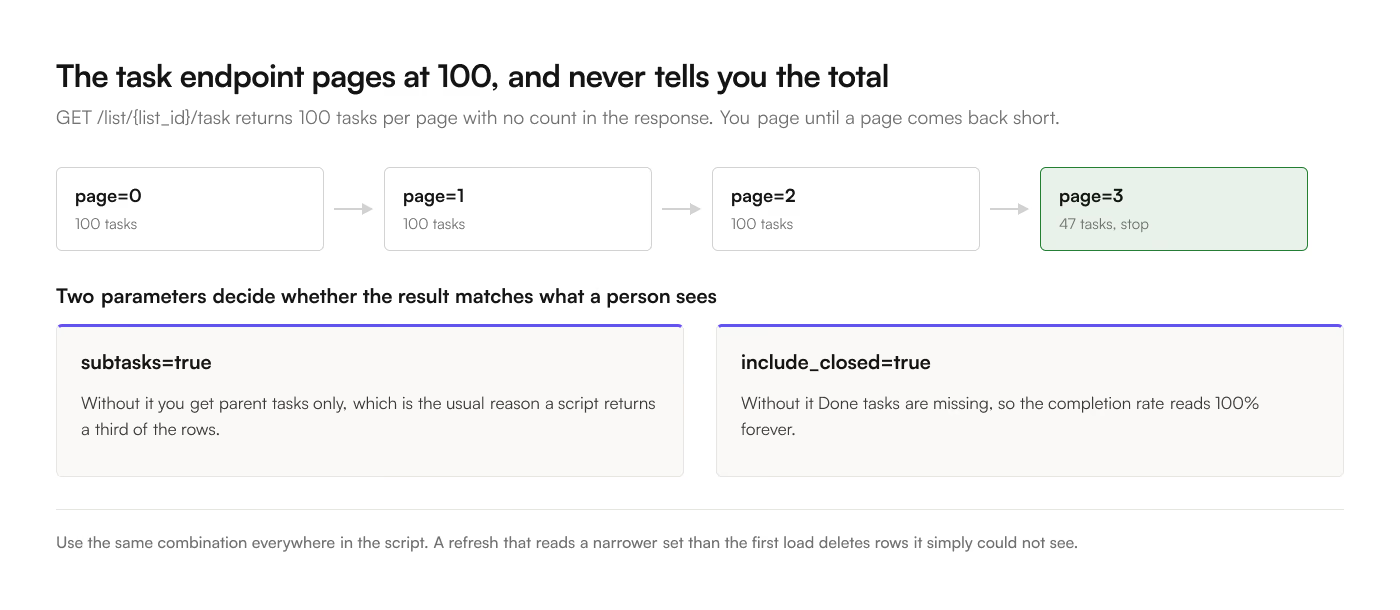
`GET /list/{list_id}/task` returns **100 tasks per page**, and the response carries no total count. You page until a page comes back short:
```javascript
function fetchAllTasks(listId) {
const tasks = [];
let page = 0;
while (true) {
const query = "?page=" + page + "&subtasks=true&include_closed=true";
const batch = clickupFetch("/list/" + listId + "/task" + query).tasks;
tasks.push(...batch);
if (batch.length < 100) break;
page += 1;
}
return tasks;
}
```
2 query parameters decide whether the result matches what a person sees in ClickUp.
Leave out **`subtasks=true`** and the listing returns parents only. This is the single most common cause of a script that returns a third of the expected rows, and [what each route does with subtasks](/blog/clickup-subtasks-in-google-sheets) covers the rest of the trap, including the deletes that never reach you.
Leave out **`include_closed=true`** and Done tasks go missing. Leave it off and your completion-rate report is 100% forever, which looks like good news until someone checks.
Whatever combination you choose, use the same one everywhere in the script. A refresh that reads a narrower set than the initial load will delete rows it simply could not see.
 ## Resolving custom fields
A task's `custom_fields` array gives you each field's id, name, type, `type_config`, and `value`. For text and number fields the value is what you want. For a dropdown it is an option **id**, and the human label lives in `type_config.options`.
```javascript
function fieldValue(field) {
if (field.type === "drop_down") {
const option = (field.type_config.options || []).find(
(candidate) => candidate.id === field.value,
);
if (!option) return "";
return option.name;
}
if (field.type === "labels") {
const chosen = field.value || [];
return (field.type_config.options || [])
.filter((option) => chosen.includes(option.id))
.map((option) => option.label)
.join(", ");
}
if (field.type === "date" && field.value) {
return new Date(Number(field.value));
}
return field.value;
}
```
Note `option.name` for a dropdown and `option.label` for labels. The 2 types disagree on the property name and there is no reason for it, so this is worth a comment in your own code.
[What each ClickUp custom field type becomes in a cell](/blog/clickup-custom-fields-google-sheets) covers the rest of the types, including the 2 you can't fully recover.
## Ceiling 1: 100 requests per minute
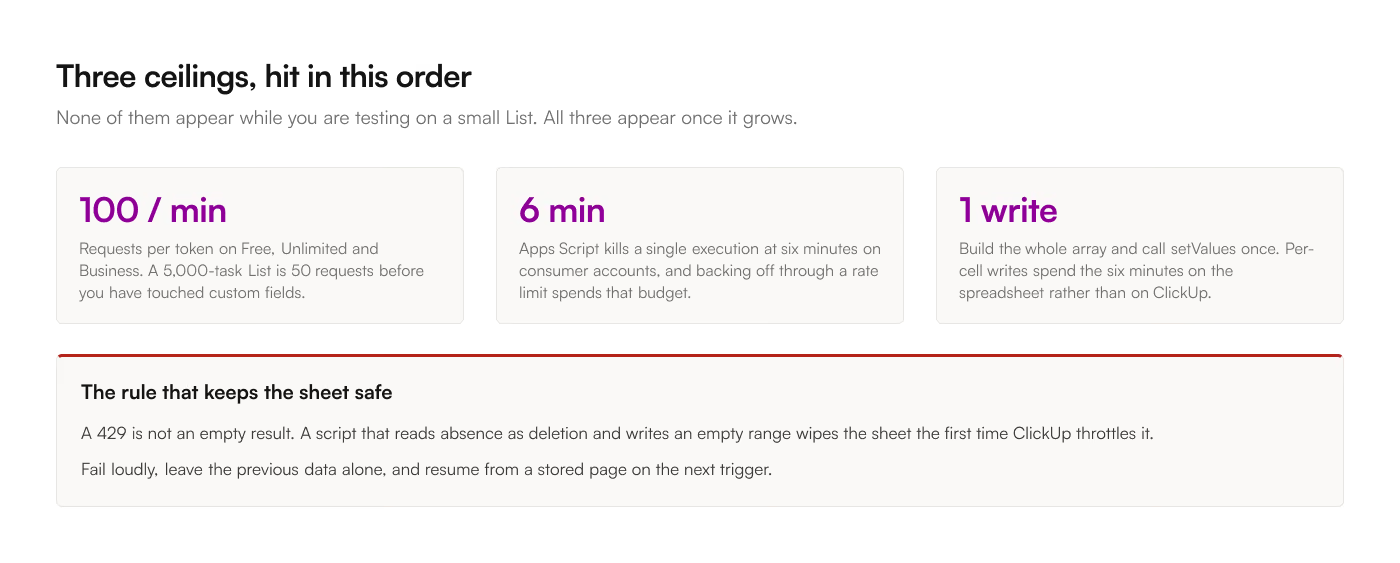
ClickUp counts that 100 requests a minute per token rather than per script, so every trigger, every ad-hoc run from the editor, and every other integration holding the same token draw on one budget. Over it you get HTTP 429.
A 5,000-task List is 50 requests before you have touched anything else. Add per-List field definitions and a time-entries pull and one refresh can approach the ceiling on its own. 2 triggers overlapping will pass it.
 Back off rather than retrying immediately:
```javascript
function withRetry(work, attempts) {
attempts = attempts || 5;
for (let attempt = 0; attempt < attempts; attempt += 1) {
try {
return work();
} catch (error) {
if (attempt === attempts - 1) throw error;
Utilities.sleep(Math.pow(2, attempt) * 1000);
}
}
}
```
The important part is that a script must never treat a 429 as "no data." A script that reads absence as deletion and writes an empty range will wipe the sheet the first time ClickUp throttles it. Fail loudly and leave the previous data alone.
## Ceiling 2: 6 minutes per execution
Apps Script kills a single execution at 6 minutes on consumer Google accounts. Sleeping through a rate-limit backoff spends that budget fast.
The pattern that survives is a checkpoint. Store the page you reached and the rows you accumulated, exit cleanly, and let the next trigger resume:
```javascript
const started = Date.now();
// inside the paging loop
if (Date.now() - started > 4.5 * 60 * 1000) {
PropertiesService.getScriptProperties().setProperty("resumePage", String(page));
return; // next trigger picks it up
}
```
Getting this right, with partial state that stays consistent if the script dies mid-write, is most of the work in a production version. It is also the part that is invisible until the List grows past whatever size it was when you tested.
The trigger itself lives under **Triggers** in the Apps Script editor, and time-driven is the only kind available to you here: a Google Sheet has no endpoint that stays warm, so ClickUp's webhooks cannot reach it. [How each refresh model behaves](/blog/how-to-sync-clickup-to-google-sheets) covers what that rules out.
## Ceiling 3: writing to the sheet
Call `setValue` per cell and a 2,000-row sync takes minutes and burns the 6-minute budget on spreadsheet calls rather than on ClickUp. Build the whole array and write it once:
```javascript
const rows = tasks.map(toRow);
const sheet = SpreadsheetApp.getActive().getSheetByName("Tasks");
sheet.getRange(2, 1, sheet.getMaxRows() - 1, headers.length).clearContent();
sheet.getRange(2, 1, rows.length, headers.length).setValues(rows);
```
Clearing then writing the full range is also what gives you deletes for free: a task that vanished from ClickUp is simply absent from `rows`. That is the whole reason to prefer a full replace over an append, and it is why the `include_closed` and `subtasks` parameters have to be stable between runs.
## Build or buy
The script above is perhaps 150 lines and an afternoon. The version that survives contact with a real workspace adds checkpointing, backoff, field-definition caching, timezone handling for dates, and a way to tell whether the last run succeeded. That is closer to a week, plus whatever it costs when it breaks while you are on holiday and someone builds a forecast on a stale tab.
Write it when you need something no tool offers, like a join across Lists on your own key, a computed column with business logic or a destination that is not a spreadsheet. Buy it when all you need is this List kept current in this tab. [The 4 routes, compared](/blog/how-to-sync-clickup-to-google-sheets) puts the script beside the alternatives. [ClickUp to Sheets](https://workspace.google.com/marketplace/app/clickup_to_sheets/359672242762) is $9 a month for that, which is less than an afternoon of anybody's time.