# ClickUp Custom Fields in Google Sheets: What Each Becomes
Dropdowns arrive as ids, dates as milliseconds, relationships as joined names. What each ClickUp field type becomes in a cell, and how to write it back.
## Key takeaways
- Over the API, a Dropdown arrives as an option id, and you turn it into its label with the field's type_config options.
- The API returns dates as POSIX milliseconds, and in a CSV export only the ISO format lands as a real date in Sheets.
- Labels, People and Relationship fields arrive as one comma-joined cell, and names aren't unique, so match on ids instead.
- Writing a value back goes through POST /api/v2/task/{task_id}/field/{field_id}, and a dropdown takes only an option id, never a label.
- Free Forever allows 60 Custom Field uses per Workspace, and past 60 ClickUp refuses new values on every Custom Field.
A sync that "works" can still leave you with a column you cannot filter, a date that sorts alphabetically, and a dropdown that reads as a UUID. How a field type arrives depends on the [method of getting ClickUp into Google Sheets](/blog/how-to-sync-clickup-to-google-sheets) you use, and the methods differ.
This is what each type becomes, why, and what to do about the ones that arrive unusable.
## The short version
| ClickUp field | Arrives as | Safe to build on? |
| --------------------- | ----------------------------------- | ----------------------------- |
| Text, Short text | Plain string | Yes |
| Number | Number | Yes |
| Money | Number, symbol dropped | Only if you know the currency |
| Date | Depends entirely on export format | Only with ISO |
| Dropdown | Option id via API, label via export | Only after resolving |
| Labels (multi-select) | Comma-joined string | No, needs splitting |
| Checkbox | `true` / `false` string | Yes, with care |
| People / Assignee | Comma-joined display names | No, names are not unique |
| Relationship | Comma-joined task names | Relationship is lost |
| Formula | Computed value at read time | Yes, as a snapshot |
| Rollup | Computed value at read time | Yes, as a snapshot |
| Progress (auto) | Percentage number | Yes |
| Files / Attachment | URL, or nothing | Rarely |
| Email, Phone, Website | Plain string | Yes |
| Rating | Number | Yes |
| Location | Formatted address string | No, coordinates dropped |
Here are the ones that cause real trouble.
## Dates are the field that decides everything
A date is the field most reports depend on and the field most likely to arrive as text.
Through ClickUp's **CSV export**, you pick the format yourself, and the default is the wrong one. The 3 options are Normal (`Mon, Aug 11, 2026 3:00 pm +02:00`), ISO (`2026-08-11T15:00:00`), and POSIX (`1786554000000`, milliseconds since 1 January 1970).
Google Sheets parses ISO into a real date value on import. It parses Normal as a text string, and text sorts alphabetically, so April comes before January and your Gantt-style chart is nonsense. POSIX arrives as a 13-digit integer, which is at least honest about being a number. Convert it with:
```
=A2/86400000 + DATE(1970,1,1)
```
Through the **ClickUp API**, dates always come back as POSIX milliseconds as a string, with no option. Any Apps Script implementation has to divide and offset, and has to decide what timezone to render in, because the API gives you an instant with no local context.
A subtlety worth knowing: ClickUp stores a due date with a flag for whether the time component is meaningful. A task due "on Tuesday" and a task due "Tuesday at 5pm" are both a millisecond timestamp. Only the `due_date_time` boolean tells them apart. Sync tools that ignore that flag show every all-day task as due at midnight or at 4am, depending on the timezone they picked.
If your dates already arrived wrong, [why ClickUp dates land as text in Google Sheets](/blog/clickup-dates-wrong-in-google-sheets) works through the repair.
## Dropdowns arrive as ids over the API
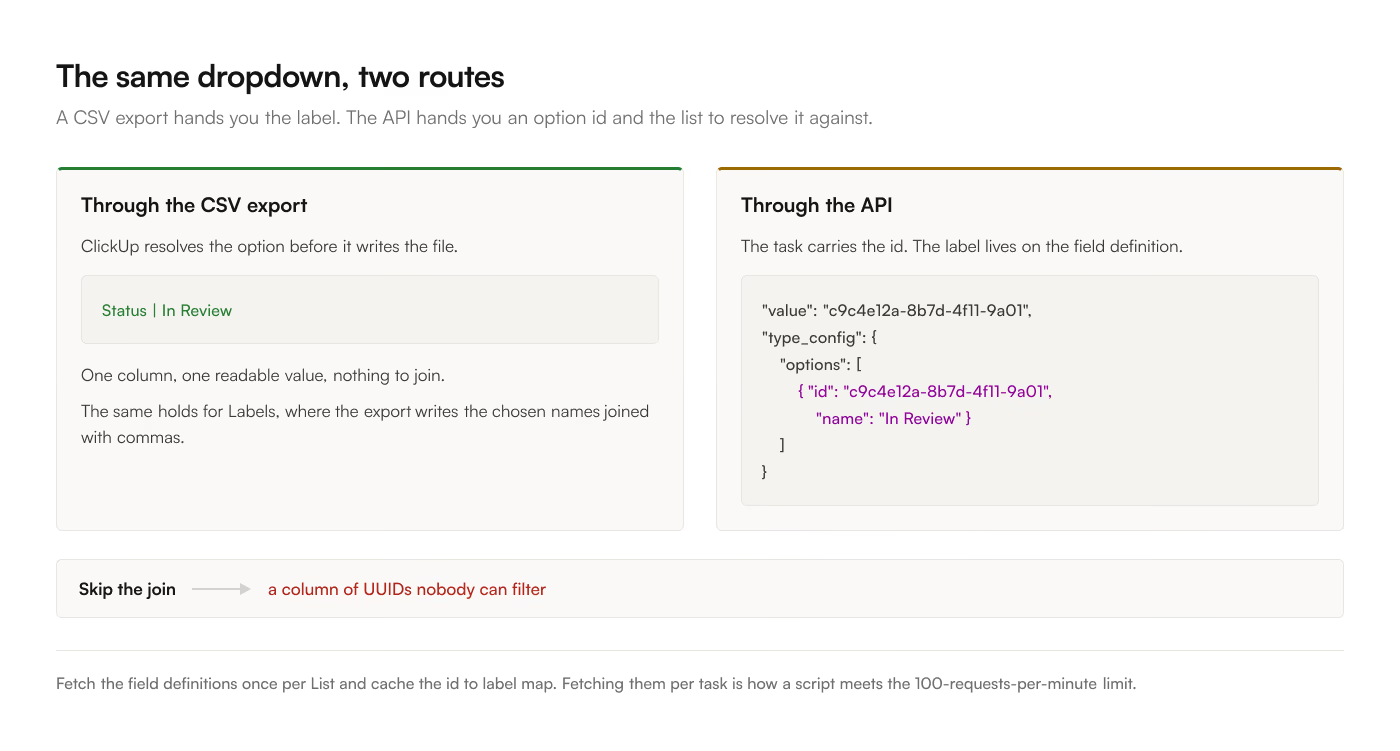
This is the single biggest gap between a CSV export and a homegrown API integration.
The **export** resolves dropdown values to their labels. You get `In Review`, and that is the end of it.
The **API** returns the selected option's id, something like `c9c4e12a-8b7d-4f11-9a01-2f8e4b6c1d33`, plus a separate `type_config` object on the field definition that lists every option with its id, name, color, and order. Resolving one to the other is a join you have to write. Skip it and your spreadsheet has a column of UUIDs.
The same applies to **Labels**, ClickUp's multi-select type, except the value is an array of option ids per task, and the resolved result needs joining into one cell or spreading across several.
If you are building on Apps Script, fetch the field definitions once per List and cache the id-to-label map. Fetching it per task is how you burn through the 100-requests-per-minute rate limit.
 ## Relationships lose the relationship
A Relationship field points at other ClickUp tasks. In a spreadsheet it becomes one cell with their names joined by commas.
`Acme migration, Globex rollout` is a string. There is no id, no link, and no way to know whether "Acme migration" is one task or 3 tasks that happen to share a name. If your report needs to follow the relationship, you need the linked task ids, which means the API rather than the export, and a second column carrying `task.id` values you can `VLOOKUP` against.
The same is true of **People** fields. 2 people named Alex Chen produce identical cells. Match on the user id, never on the display name.
## Formulas and rollups are snapshots
ClickUp computes a Formula field on its own side. Whatever crosses into Sheets is the value it held at read time, frozen.
That is usually what you want, and occasionally a trap. If the formula depends on `today()` or on a rollup over child tasks, the number in your Sheet ages while the number in ClickUp does not, and the 2 disagree until the next sync. If the number matters, recompute it in Sheets from the underlying columns rather than importing the ClickUp result.
## Attachments mostly do not survive
An attachment field is a file, and a spreadsheet cell holds text. You get the attachment URL, if anything.
Those URLs point at ClickUp storage and require a valid session to open, so a URL pasted into a sheet you shared with a client is a link to a login page. Free Forever caps workspaces at 60MB of attachment storage in the first place, so the field is often empty on the plans most likely to be exporting.
Treat attachments as "there is a file, go look in ClickUp" and build nothing on them.
## Checkboxes and the string `true`
A checkbox arrives as `true` or `false`. Depending on the route, that can be a boolean Sheets recognizes, or the literal text. `COUNTIF(A:A, TRUE)` against a column of text strings returns zero, silently.
The reliable test is `=ISLOGICAL(A2)`. If it returns FALSE, wrap your comparisons in `=A2="true"` instead and note it, because the next person will assume the obvious.
## Money drops the currency
A Money field arrives as a bare number. The currency lives in the field's configuration, not in the value, so a workspace tracking deals in both EUR and USD produces one column of numbers with nothing distinguishing them.
If that describes you, add the currency as its own Dropdown field in ClickUp before you build a report on the amounts. There is no way to recover it downstream.
## Writing a custom field back to ClickUp
Reading is the easy direction. The moment you want a cell edit in Sheets to update the ClickUp task, every type above reverses, and the reverse is stricter.
One endpoint does all of it, `POST /api/v2/task/{task_id}/field/{field_id}`. The new value goes in the body. What goes in the body depends on the type:
```json
// Dropdown: the option UUID, never the label
{ "value": "c9c4e12a-8b7d-4f11-9a01-2f8e4b6c1d33" }
// Labels: an array of option UUIDs
{ "value": ["uuid1234", "uuid9876"] }
// Date: Unix milliseconds, plus the time flag if the time is real
{ "value": 1667367645000, "value_options": { "time": true } }
```
3 things catch people here.
**A dropdown will not accept a label.** You have to resolve `In Review` back to its option id before you send it, which means the same `type_config` map you needed on the way in. ClickUp's own reference is explicit that this request can't create new dropdown options, so ClickUp rejects a value your sheet invented rather than adding it.
**The date flag is the same `time` boolean, in a different place.** Send a timestamp without `value_options.time` and an all-day task gets a time it did not have, or the other way round.
**Removing a value is not sending an empty one** for Relationship, People, and Files fields. Those take a `{ "value": { "rem": ["id"] } }` shape, because the field stores a set rather than a scalar.
This is the work a two-way sync does on every edited cell. That's why it sits on the top plan in [ClickUp to Sheets](https://workspace.google.com/marketplace/app/clickup_to_sheets/359672242762) rather than being free everywhere. If you are writing it yourself, [the ClickUp API guide](/blog/clickup-api-google-sheets-apps-script) has the fetch wrapper and the rate-limit handling it needs.
## ClickUp-side limits
A field that never arrives is sometimes not a sync problem.
**Free Forever caps a Workspace at 60 Custom Field uses**, where one use is one value set on one task. Creating fields and adding options are free. Filling them in is what counts, and adding 2 labels to a Labels field on a single task spends two. The total accumulates across the Workspace and never resets, and past 60 ClickUp refuses new values on every Custom Field. In a sheet that reads as a column that fills in for the first stretch of the List and then goes blank, with nothing anywhere saying why. [The rest of the free plan ceilings](/blog/clickup-free-plan-limits) are on their own page.
**A field only appears on tasks in the locations you added it to.** A field created on one List is absent from the API response for tasks in another, and an empty column across half your rows usually means exactly that rather than a lost value.
## Your workspace checklist
Rather than trusting a table, run this once:
1. Make a ClickUp List with one task and one field of every type you use, filled in.
2. Sync or export it by whatever method you are evaluating.
3. In the resulting sheet, put `=ISNUMBER(B2)`, `=ISLOGICAL(B2)`, and `=ISTEXT(B2)` beside each column.
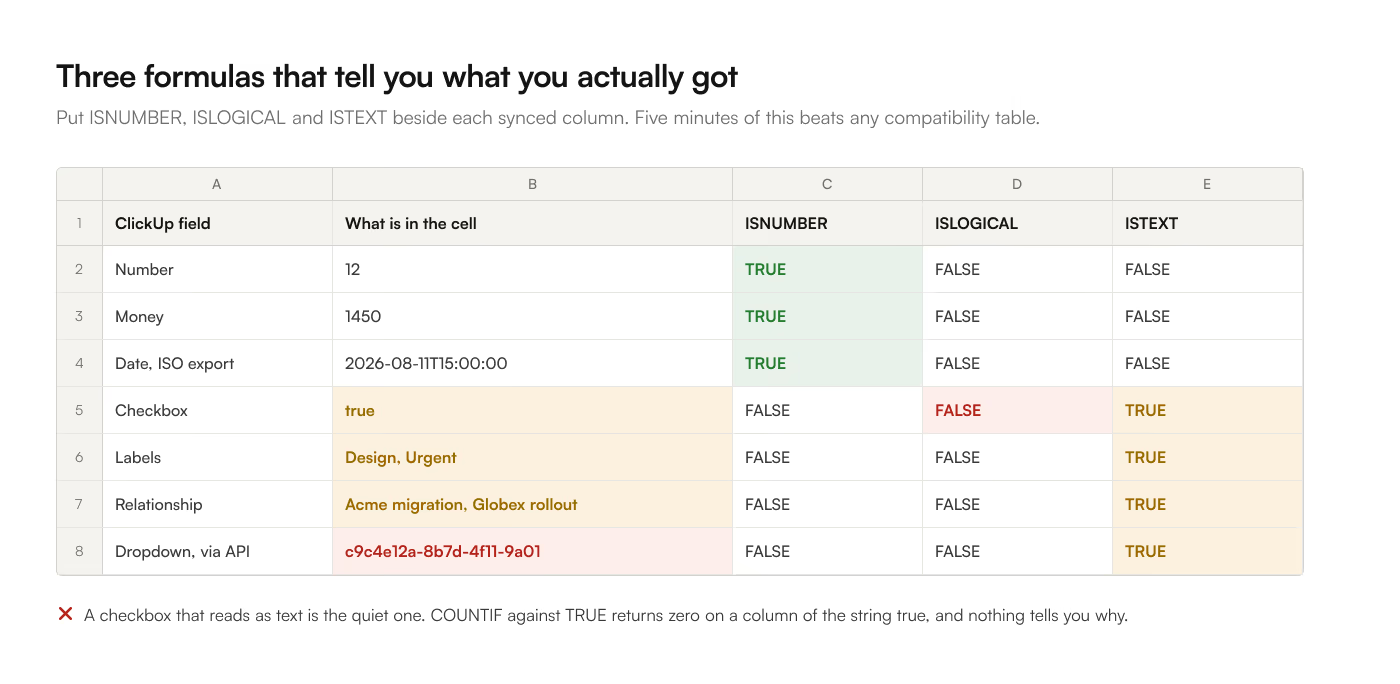 Spend 5 minutes on that test. It tells you more than any documentation, this page included, because it runs against the exact combination of your plan, your fields, and your tool.
If you would rather pick fields and see what arrives before committing, that is what the field picker in [ClickUp to Sheets](https://workspace.google.com/marketplace/app/clickup_to_sheets/359672242762) is for: you choose the columns in the sidebar and the tab shows you what lands, before you build a report on top of it.