# ClickUp Subtasks in Google Sheets: Why They Go Missing
ClickUp subtasks stay hidden by default, and deleting a parent takes its children with no event. How to turn them on per route and keep counts honest.
## Key takeaways
- All 4 routes from ClickUp into Google Sheets leave subtasks out by default, so a List of 300 tasks can export as 90 rows.
- Before a CSV or Excel export, set the Subtasks dropdown to As separate tasks in List view, or toggle on Showing Subtasks in Table view.
- Over the API, GET /list/{list_id}/task returns parents only until you add subtasks=true, and completed tasks need include_closed=true.
- Checklist items never become rows on any route, so anything you count or bill against has to be a subtask.
- Deleting a parent deletes its subtasks with an event for the parent only, so a Zapier or Make sync leaves the child rows in the sheet.
You export a List of 300 tasks and get 90 rows. Nothing errored. The count is simply wrong, and it is wrong by exactly the amount of work your team does in subtasks.
All 4 routes from ClickUp into Google Sheets treat subtasks as opt-in. Here is what each one does, and what to do about the 2 problems that survive turning them on.
## Missing subtask causes
ClickUp models a subtask as a task with a `parent`. It is a full task with its own status, assignee, dates, and custom fields, and it lives in the same List. The default is what differs: every listing surface hides children behind their parent unless told otherwise.
That default is defensible in the interface, where nesting is the point. It is a trap in an export, where nothing in the file shows that anything was left out.
## Checklist items never become rows
Checklists are the other reason a count comes up short, and this one no setting will fix.
A checklist lives inside a single task. An item holds a name, an optional assignee, and a resolved flag, and that is the entire object: no status, no dates, no custom fields, no time tracking, no id a report can group by. Through the API the items hang off their task in a `checklists` array and you edit them through their own path at `/checklist/{checklist_id}/checklist_item/{item_id}`. They never come back from a task listing, whatever `subtasks` is set to.
So the choice of checklist or subtask, made months ago by whoever created the template, decides what you can report on today. Anything you will count or bill against has to be a subtask. Checklists are for steps inside one person's task.
## Turning them on, per route
All of them hide subtasks by default. Here is the switch for each.
### The CSV or Excel export
The setting lives on the **view**, not in the export dialog, so people miss it. Before clicking Customize:
- In **List view**, open the **Subtasks** dropdown in the upper-right and choose **As separate tasks**.
- In **Table view**, toggle on **Showing Subtasks**.
Then export as normal. Also expand every collapsed group first, because the export leaves out collapsed groups regardless of the subtask setting, and the 2 omissions compound. [Exporting ClickUp tasks to Excel](/blog/export-clickup-tasks-to-excel) has the rest of the dialog, including the 5-export cap on Free and Unlimited.
### The API
Add `subtasks=true` to the task listing call:
```
GET /list/{list_id}/task?subtasks=true&include_closed=true
```
Without it, `GET /list/{list_id}/task` returns parents only. A returned subtask has a `parent` property holding its parent's task id, and you rebuild the hierarchy from that.
Pair it with `include_closed=true` unless you are certain you want open work only. A completed subtask under an open parent is invisible without both. [The Apps Script guide to the ClickUp API](/blog/clickup-api-google-sheets-apps-script) covers the pagination and the 100-requests-per-minute ceiling you meet as soon as subtasks triple your row count.
### Zapier and Make
A "new task" or "task changed" trigger fires for subtasks as well as parents, so an event pipeline picks them up naturally as they change. The catch is the backfill: existing subtasks are not in your sheet and will not arrive until each one happens to change. You also pay for that backfill, one task at a time, which is [the arithmetic that decides whether Zapier makes sense for a List this size](/blog/clickup-to-sheets-vs-zapier).
### Unito
Unito's Google Sheets connector doesn't sync subtasks or checklist items at all, per its own limitations page, so only parent tasks reach the sheet. Its bill still counts every item twice, which [Unito pricing](/blog/unito-pricing) works through for a 1,000-task List.
### A Sheets add-on
[ClickUp to Sheets](https://workspace.google.com/marketplace/app/clickup_to_sheets/359672242762) syncs subtasks as rows alongside their parents, with the parent id available as a column, so the hierarchy is reconstructable in the sheet.
## Problem 1: the hierarchy flattens
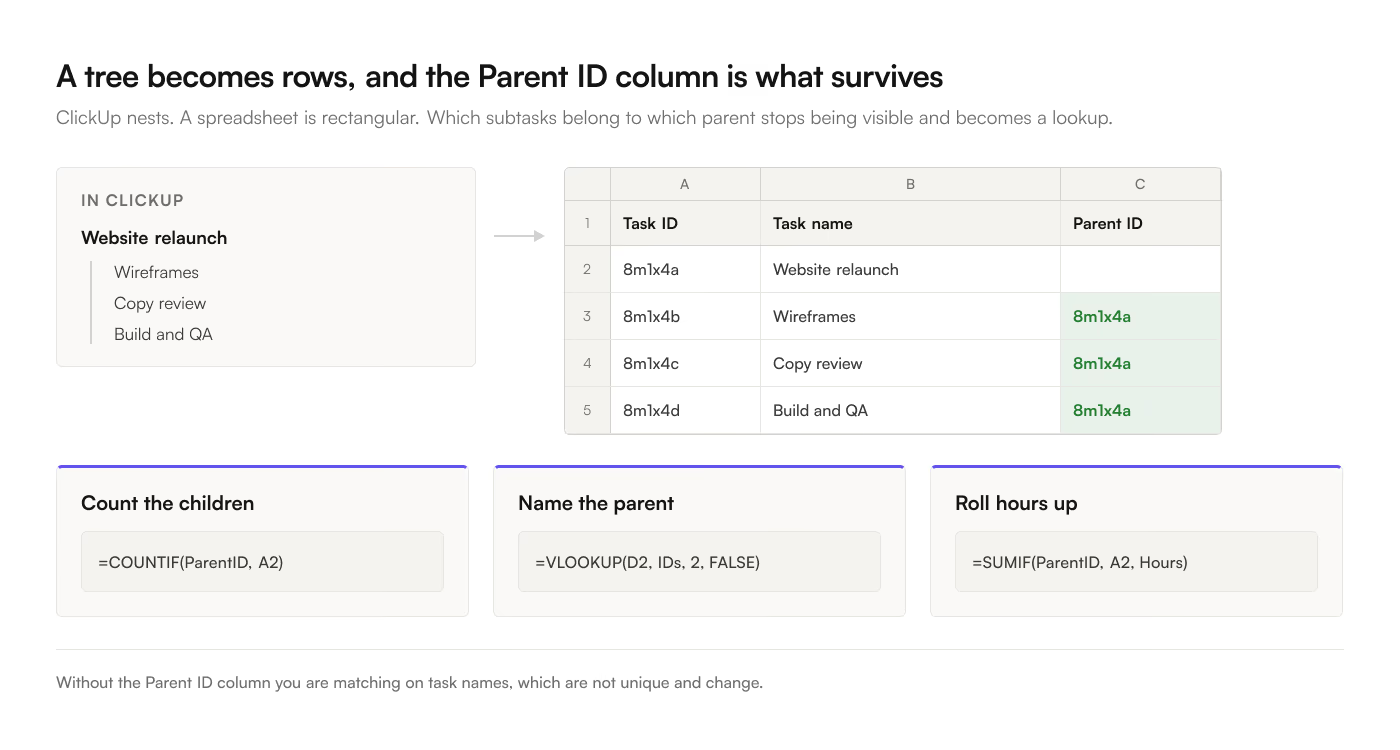
A spreadsheet is rectangular and ClickUp is a tree. Once subtasks are rows, "which subtasks belong to this parent" is a lookup rather than a visual fact.
Keep a **Parent ID** column. With it you can:
Count children per parent:
```
=COUNTIF(ParentID_Range, A2)
```
Show the parent's name beside each child:
```
=IFERROR(VLOOKUP(D2, {TaskID_Range, TaskName_Range}, 2, FALSE), "")
```
Roll a child metric up to the parent:
```
=SUMIF(ParentID_Range, A2, Hours_Range)
```
Without that column you are matching on task names, which are not unique and change.
 Hours are where that rollup earns its keep, because people start the timer wherever it is convenient. If the time sits on the parent and your report groups by subtask, every child reads as free, and [the estimate variance report](/blog/clickup-time-estimates-vs-actual-google-sheets) inherits the same distortion in both of its columns.
A related trap: a subtask can have its own subtasks. The Nested Subtasks ClickApp allows 3 levels by default and can be set as deep as seven, and one task can hold up to 1,000 subtasks counting the nested ones. A single Parent ID column gives you one hop up that chain, so rebuilding the full tree in a spreadsheet means walking it iteratively, once per level. Most reports only need one level. Check how deep your Workspace is set before assuming yours does.
## Problem 2: deleted subtasks never leave
This one is quieter and worse.
When you delete a parent task in ClickUp, **ClickUp deletes its subtasks server-side and emits a deletion event for the parent only**. The children are gone from ClickUp and no event ever announces them.
For anything built on events, that is unrecoverable by design. A Zapier or Make pipeline listening for task deletions removes the parent's row and leaves every child row sitting in the sheet, permanently, describing work on a project that no longer exists. Counts stay high, completion percentages stay wrong, and nothing in either tool will ever correct it. The only fix is a manual full refresh, run by a person who noticed.
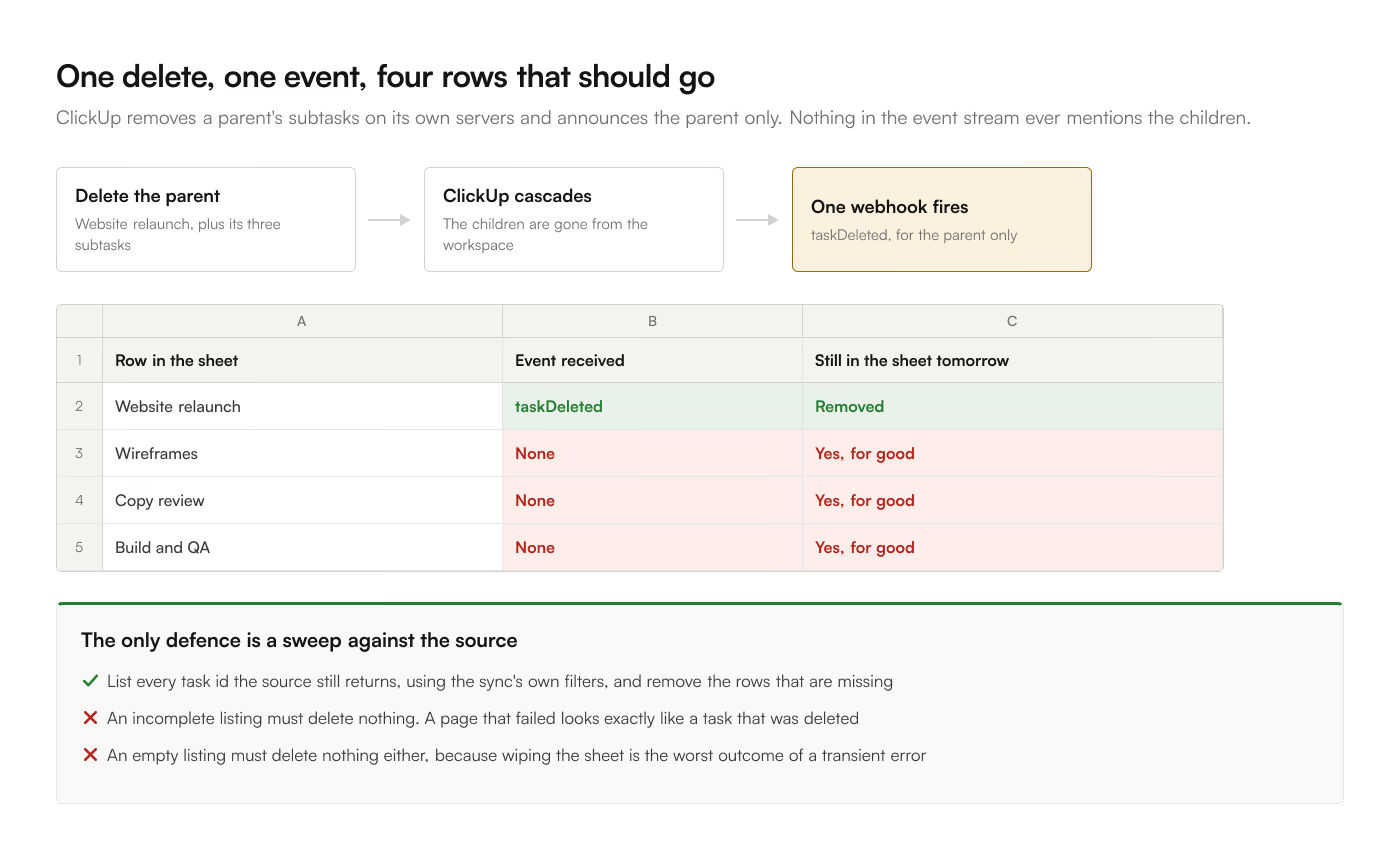 The defense is reconciliation: periodically list every task id the source still returns, compare against the sheet, and delete the rows that are no longer there. That's safe only with 2 properties, and both matter.
**An incomplete listing must not delete anything.** If a page of the listing failed, or you hit the 100-requests-per-minute ceiling and stopped early, the tasks you failed to see look exactly like tasks someone deleted. Treat a partial read as no information.
**An empty listing must not delete anything either.** A source hiccup that returns zero tasks would otherwise wipe the sheet, which is the worst possible outcome of a transient error.
If you are building this yourself, those 2 refusals are the whole safety story. ClickUp to Sheets runs the reconciliation after any batch containing a delete and again on a daily backstop, using the sync's own filters so the comparison sees exactly what a full sync would write.
## The quick diagnostic
If a synced tab and ClickUp disagree on the count, work through this in order:
1. Are subtasks turned on for this route? 9 times out of 10 this is the answer.
2. Are the missing items checklist items rather than subtasks? Open one parent and look. No route carries checklist items across.
3. Are closed tasks included? A view filtered to open work exports differently from `include_closed=true`.
4. Were any groups collapsed at export time?
5. Does the sheet contain rows for tasks that no longer exist in ClickUp? Sort by a date column and look at the oldest rows. Orphans from deleted parents cluster there.
6. Do the filters on your view match the filters on your sync? One that reads a narrower set than the report expects will look like missing data and is actually a scope mismatch.
Items 1 through 4 make the sheet too small. Item 5 makes it too big. It is entirely possible to have both at once, so the counts rarely differ by a round number.