Dates are the field every report depends on and the field most likely to arrive broken. 4 distinct problems produce 4 distinct symptoms, and treating one as another wastes an afternoon.
Match your symptom below.
Symptom 1: dates sort alphabetically
April before January. December before February. Sorting by date puts the year in the wrong order.
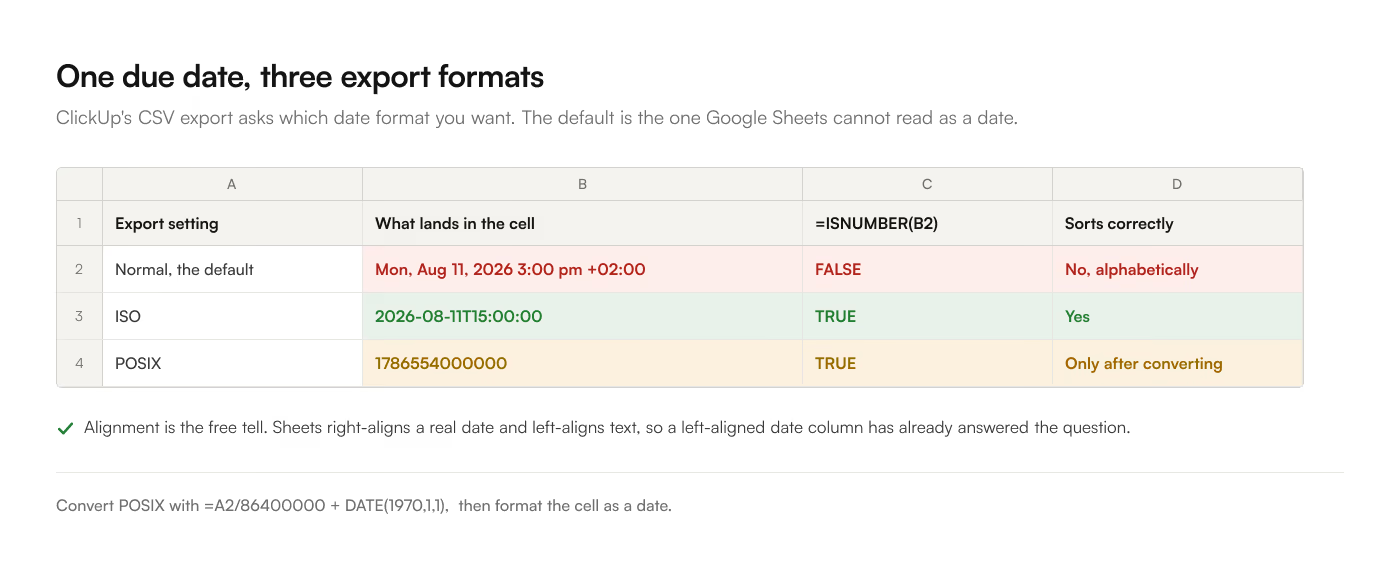
Cause. The cells hold text, not dates. ClickUp's CSV export defaults to its Normal date format, which produces something like Mon, Aug 11, 2026 3:00 pm +02:00. Google Sheets sees a string and stores a string.
The quick confirmation is =ISNUMBER(A2). A real date is a number underneath and returns TRUE. Text returns FALSE. A second tell is alignment: Sheets right-aligns dates and numbers, left-aligns text. A left-aligned date column has already told you.
Fix, at the source. Re-export with Date Format: ISO. ISO 8601 (2026-08-11T15:00:00.000Z) is the one format Sheets parses into a real date on import, every time, regardless of the reader's locale.
Fix, after the fact. If re-exporting is not an option:
=DATEVALUE(MID(A2, 6, 12))
adjusting the offsets to your string, then format the result as a date. This is fragile and locale-dependent, which is why fixing the export is worth the extra 30 seconds.
Symptom 2: a column of 13-digit numbers
1786554000000 where you expected a date.
Cause. POSIX time, in milliseconds since 1 January 1970. This is what the POSIX export option produces, and it is what the ClickUp API always returns, with no alternative. Any Apps Script implementation meets this on the first task.
Fix. Divide out the milliseconds and add the epoch:
=A2/86400000 + DATE(1970,1,1)
then format the cell as a date. In Apps Script, new Date(Number(field.value)) does the same thing.
A caveat that matters: this converts to UTC. If your workspace thinks in local time, see symptom 3.
Symptom 3: everything is off by a day, or shows 4am
A task due 11 August shows as 10 August. Or every all-day task shows a time of 4:00 am, or midnight, when nobody set a time.
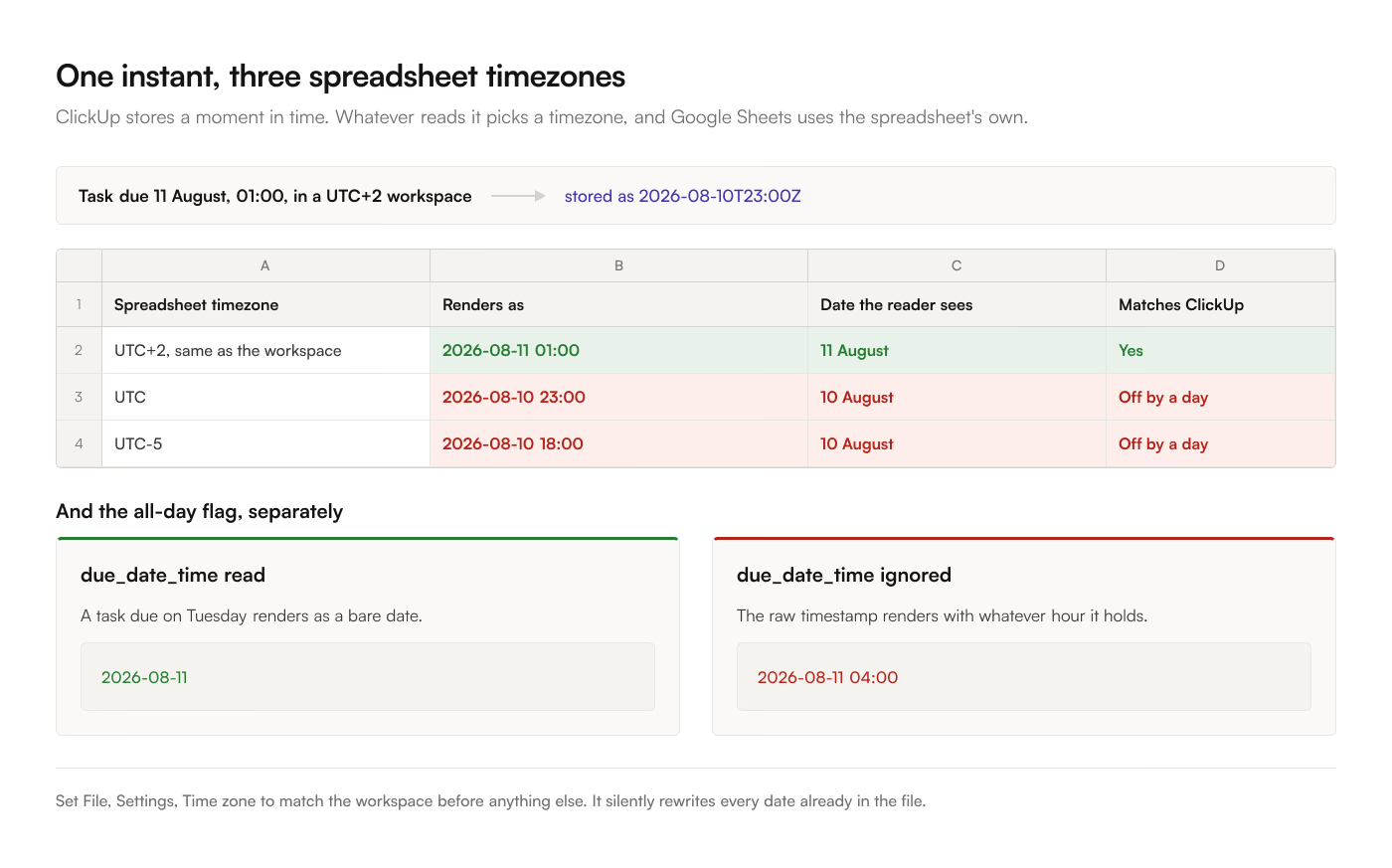
Cause, part 1: the timezone. ClickUp stores an instant. The API hands you a millisecond count with no timezone attached, so whatever converts it picks one. Google Sheets applies the spreadsheet's timezone, which is set in File, Settings and is not necessarily yours. A task due at 9am in UTC+2 is 07:00 UTC, and a sheet set to UTC-5 renders that as 02:00 on the same day. Push the due time later in the day and the date itself rolls backwards.
Cause, part 2: 4am is a value ClickUp stores. ClickUp's own ClickUp date formats doc says it plainly: "Date fields without specific times are set to 4 am in the local timezone of the person setting the field." The hour is in the data, waiting for anything that renders a timestamp. 2 people in different timezones setting the same due date store different instants. Depending on the timezone gap, those 2 readings can sit 4 hours apart from midnight in each of their days.
ClickUp tracks separately whether that time component is meaningful. A task due "on Tuesday" and one due "Tuesday at 5pm" are both a timestamp; only the due_date_time boolean distinguishes them. Anything that ignores that flag renders every all-day task at 4am, or at whatever local hour the timestamp lands on after conversion.
Fix.
- Set the spreadsheet timezone to match the workspace: File, Settings, Time zone. Do this before anything else, because it silently changes every date already in the file.
- For date-only reporting, strip the time so the comparison cannot drift:
=INT(A2)gives the date part alone. - If you are writing the sync, read
due_date_timeand render all-day dates as a bare date rather than a timestamp.
The general rule: pick date-only or timestamp for a given column and never mix them. A column with both is a column where = comparisons fail for reasons nobody can see.