ClickUp's export dialog is 4 questions deep and every answer changes what lands in the file. Most people click through it once, get a spreadsheet that is missing half their work, and conclude the export is broken. What they got is a faithful answer to the questions they gave it, and two of those questions default to the wrong answer.
Here is the whole menu, what each choice actually does, and the 3 limits that decide whether the export is usable at all.
The steps
- Open the List view or Table view you want to export. Other view types have no export.
- Click Customize in the upper-right corner.
- Click Export.
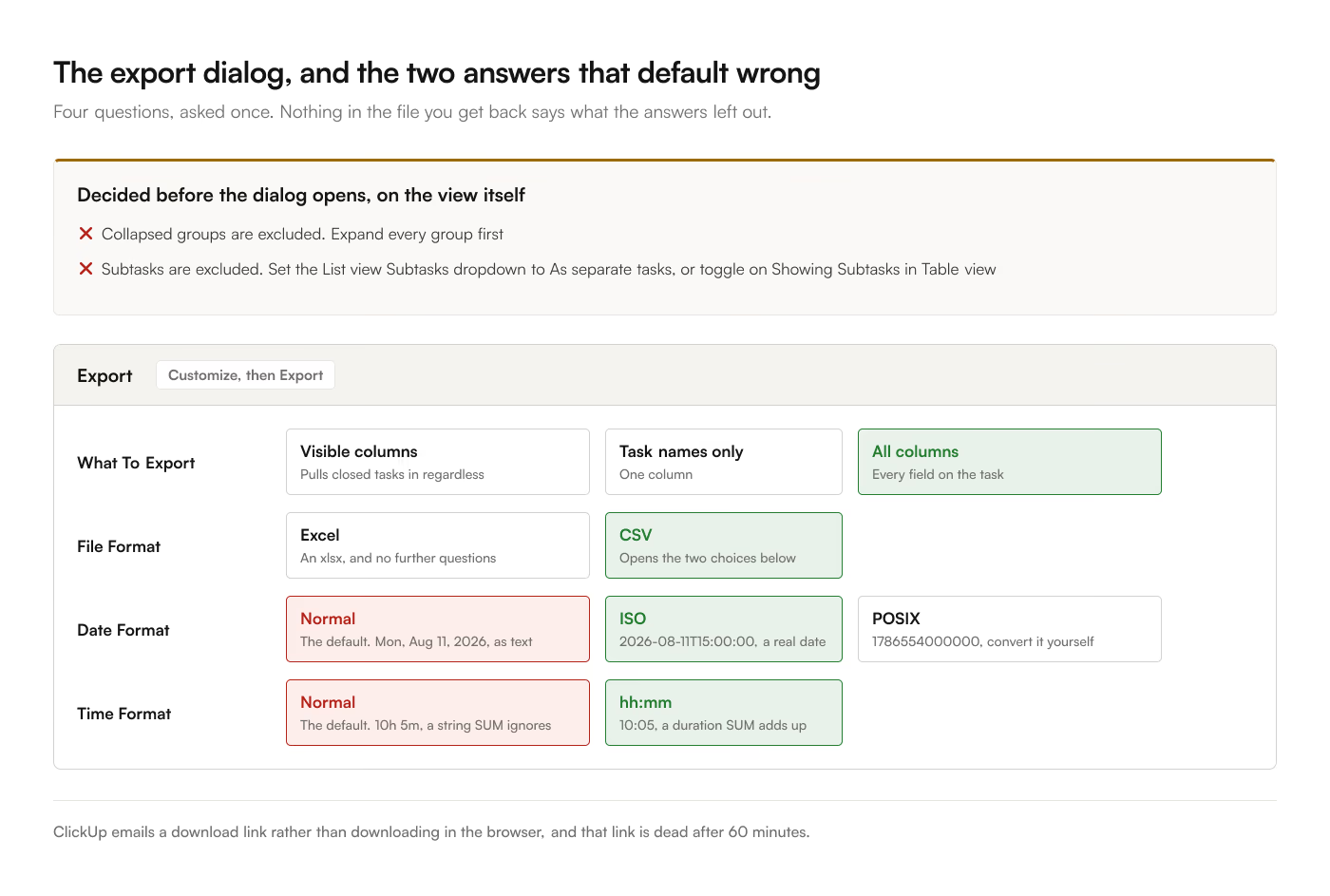
- Answer What To Export, pick a File Format, set the date and time formats if you chose CSV, then click Download.
ClickUp emails you a link rather than downloading in the browser.
Export options
Visible columns exports only the columns currently shown in your view. It has one behavior that surprises people every time: closed tasks appear in the export whether or not your view shows them. If your view filters to open work and your export comes back with twice the rows you expected, this is why.
Task names only gives you a single column of task names. Useful for a checklist, useless for a report.
All columns exports every field on those tasks, including fields your view has hidden. This is the option you want when the spreadsheet is going to become a report, because a column you did not think to show is much easier to delete than to go back for.
The view is the filter
The export follows the view. Set the view first. Filters, sorts, and grouping all carry through. That is convenient right up until it is not:
Collapsed groups are excluded from the export. This is stated plainly in ClickUp's documentation and it is the single most common cause of a short export. If your view groups by assignee and you collapsed the people you were not looking at, those tasks are gone from the file. Expand everything before you export.
Subtasks are opt-in. They are not included by default. To get them:
- In List view, open the Subtasks dropdown in the upper-right and select As separate tasks.
- In Table view, toggle on Showing Subtasks.
A workspace that does its real work in subtasks and exports without this setting gets a file of parent headlines with no detail underneath. Getting ClickUp subtasks into Google Sheets covers what every other sync route does with them, because the answer differs by tool.
CSV or Excel, and the 2 settings underneath
Choosing Excel gives you an .xlsx and no further questions.
Choosing CSV opens 2 format choices that determine whether your dates and durations arrive as numbers or as text.
Date Format
| Option |
What lands in the cell |
| Normal |
Day, date, time, and timezone offset, as text |
| ISO |
Year, month, day, then T and the time |
| POSIX |
Milliseconds elapsed since 1 January 1970 |
Pick ISO if the file is going into Google Sheets. Sheets parses ISO 8601 into a real date on import. The Normal format arrives as a text string that looks like a date and sorts alphabetically, which puts December before February. POSIX arrives as a 13-digit integer that you can convert with =A2/86400000+DATE(1970,1,1) but which nobody will recognize 6 months later.
The default is Normal, which is the one most likely to break. This is worth changing every single time. Why ClickUp dates arrive broken in Sheets matches each symptom to its cause, including the 4am one.
Time Format
| Option |
What lands in the cell |
| Normal |
10h 5m |
| hh:mm |
10:05 |
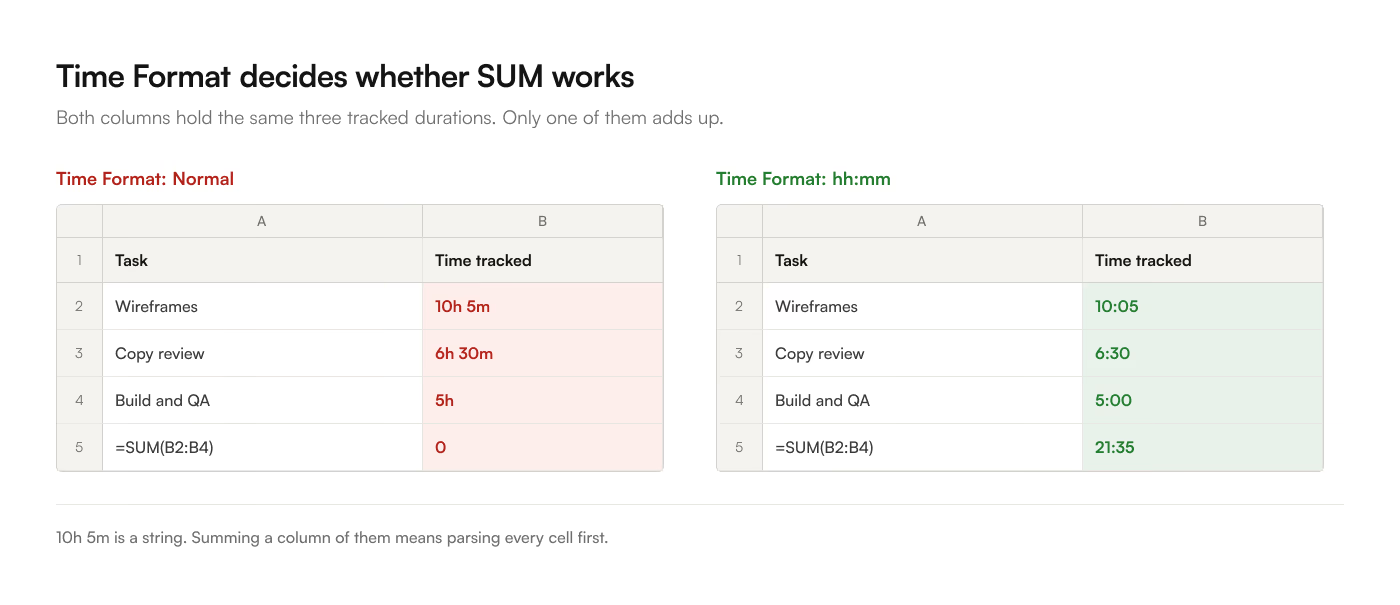
Pick hh:mm if you plan to add durations up. 10h 5m is a string; summing a column of them requires parsing. 10:05 is a duration Sheets understands, so SUM works on the column directly.
Time in Status
Workspaces with the Time in Status ClickApp turned on get a third choice. Current only exports the time in the task's present status. Total by status exports one column per status with the total time spent in each. Exporting All columns pulls Time in Status in automatically; exporting Visible columns requires you to add the column to the view first.
The 3 export limits
Exports fail on links, budgets, and permissions. One section each.
1: the link expires in an hour
ClickUp emails a download link and that link is dead after 60 minutes. Export as you finish for the evening and the file is gone by morning. This is documented behavior. The link cannot be extended.
2: Free and Unlimited get 5
ClickUp's import and export limits page states that Free Forever and Unlimited plans "can only export 5 List, Table, or Form views." Its export overview page says view export is available "on our Business Plan and above." The 2 pages contradict each other; the practical read is that below Business you have a small, fixed budget of exports and no way to buy more without upgrading.
At $12 per user per month billed annually, Business is the cheapest plan where recurring export is a supported motion, and that price is per user across the whole workspace. What else the Free plan caps puts that number next to the storage and custom field limits you are probably also near.
3: permissions are checked twice
Exporting a view needs both:
- Edit permission or higher on the List, Folder, or Space itself, and
- the Export Views permission active on your user role.
On Free, Unlimited, and Business, members can export views but cannot export workspace-level task data through the workspace export setting. That is Admins and Owners only. On Business Plus and Enterprise the Exporting permission can be granted to members, but it is off by default.
If your export button is missing, this is almost always the reason, and it is not something you can fix from the export dialog.
Exporting the whole Workspace instead of one view
There is a second export path, at a different scale. Owners and Admins can export task data across whole Spaces, Folders, and Lists at once, from a different screen and with different output:
- Click your Workspace avatar in the upper-left corner, then Settings.
- In the sidebar, select Imports / Exports, then Export Items.
- Open Select locations and choose the Spaces, Folders, Subfolders, or Lists you want.
- Click Start Export, then Download Export when it finishes. The link also arrives by email.
You get one CSV, never Excel, and no date or time format choice, so every date arrives in ClickUp's default rendering. What you gain is coverage: task id, task link, task type, name, description, status, dates, assignees, time estimated, attachment hyperlinks, and comments, across everything you selected, with no view filter deciding what got left out.
ClickUp's own advice is to select only the locations you need, because "exports of large Workspaces or Workspaces with large projects may not succeed." A whole-workspace selection is the most common way to meet that failure.
Export limits
The export is a good answer to "I need this data once." It is a poor answer to "I need this data every week," for reasons that compound:
- Every refresh is the same 6 clicks, plus expanding groups, plus fixing the date format.
- Re-importing over the previous tab destroys any formula, chart, or conditional format you built on it.
- Appending instead of replacing gives you duplicates with no key to dedupe on.
- Nothing removes a row when the task is deleted in ClickUp, so a sheet you maintain by appending drifts upward forever.
- Large workspaces can fail outright, and the fix is narrowing the selection rather than retrying.
Once "export it again" appears on somebody's weekly checklist, the export has become a chore. The 4 ways to sync ClickUp to Google Sheets covers what replaces it, from Apps Script on the API through to a Sheets add-on that keeps the tab current on a schedule.