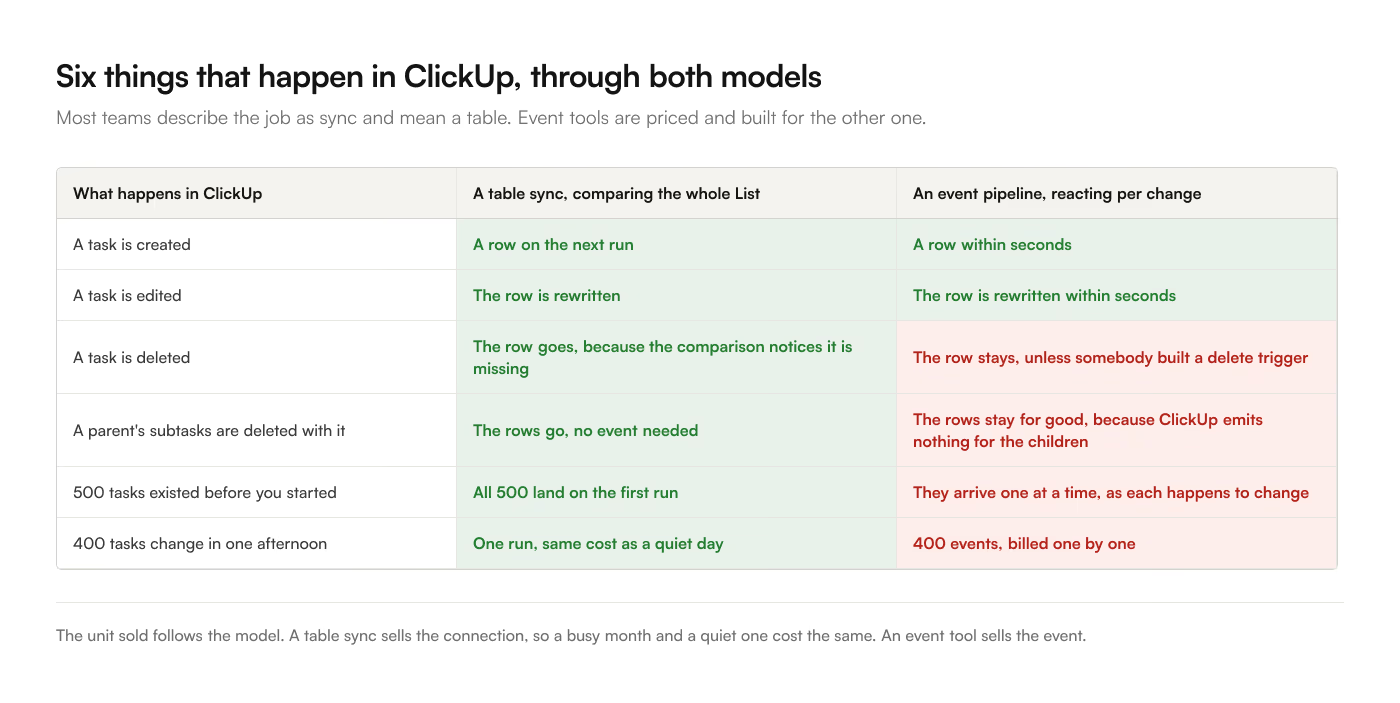
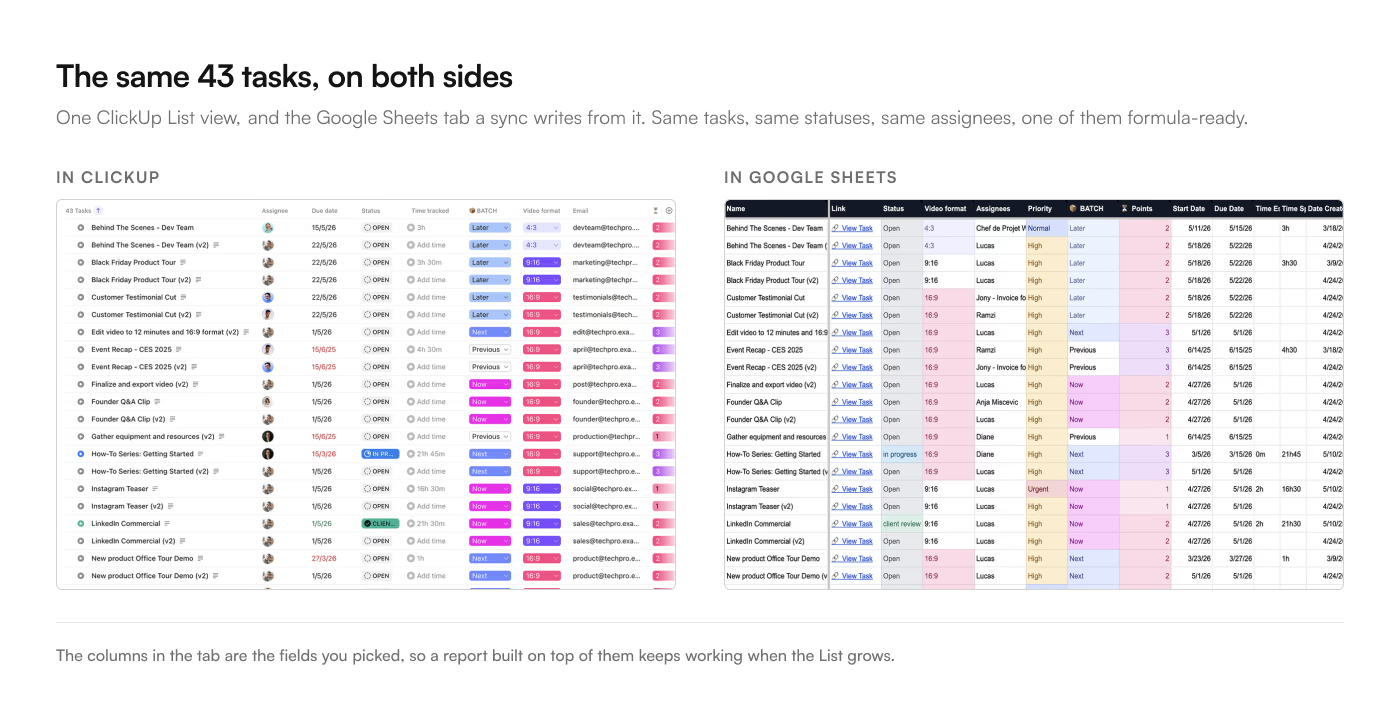
Your work lives in ClickUp. Someone on your team lives in Google Sheets, because that is where the pivot tables, the QUERY formulas, and the finance model already are. You want the Sheet to show what ClickUp shows, without a person exporting a CSV every Monday morning.
There are 4 ways to do it. Each one is real, each has a limit nobody advertises, and only 2 keep working after you look away.
Native integration status
No. Its own integrations directory URL for Google Sheets, clickup.com/integrations/google-sheets, redirects to a page about Zapier. ClickUp integrates natively with Google Drive for attachments and with Google Calendar for scheduling, but nothing in the product pushes a List into a spreadsheet. That gap is why this category of tools exists.
Everything below moves data in one direction, from ClickUp into Google Sheets, except where a method is called out as two-way.
Method 1: Export a CSV from ClickUp and import it into Sheets
The zero-setup option. Good for a one-time snapshot, awkward for anything you need again next week.
Steps
- Open the List view or Table view you want. The export follows the view, so filters, sorts, and grouping are what you get. Collapsed groups are excluded from the export, which is the single most common reason an export comes back short.
- In the upper-right corner, click Customize, then Export.
- Pick what to export. Visible columns exports only the columns on screen, and it also pulls in closed tasks whether or not your view shows them. Task names only gives you a single column. All columns exports every field on those tasks regardless of what the view displays.
- Choose CSV or Excel. If you pick CSV you get 2 extra choices that matter later: a Date Format (Normal, ISO, or POSIX milliseconds) and a Time Format (
10h 5mstyle, or10:05). - Click Download. ClickUp emails you a link.
- In Google Sheets, go to File, Import, upload the file, and pick an import location.
What breaks
Subtasks are excluded unless you ask for them. They are not part of the export by default. In List view you set the Subtasks dropdown to As separate tasks; in Table view you toggle on Showing Subtasks. Skip that and a workspace that does most of its real work in subtasks exports as a list of parent headlines.
The download link expires after one hour. Export on Friday afternoon, open the email Monday, and you start again.
Free and Unlimited workspaces get 5. ClickUp caps Free Forever and Unlimited plans at 5 List, Table, or Form view exports. Its own export overview page describes view export as Business-and-above, while the feature limits page documents the 5-export cap on the lower plans. The 2 pages disagree; plan for the cap.
Large workspaces can simply fail. ClickUp's own documentation says exports of large workspaces "may not succeed" and recommends selecting fewer locations. There is no partial-success signal, so a silent failure looks the same as a slow one.
Permissions have 2 sides. A member needs Edit permission or higher on the List and the Export Views permission on their role. Members cannot export workspace-level task data at all on Free, Unlimited, or Business; that is Admin and Owner only.
And it captures one moment. The file holds whatever ClickUp said at the second you clicked Download. The moment a task changes, the Sheet is stale, and nothing tells you. Re-importing with Replace wipes the formulas and formatting on that tab; appending gives you duplicates.
Use a CSV export for a snapshot you will never repeat. Do not build a recurring report on it. Exporting ClickUp tasks to Excel walks the menu in full, including the date-format choice that decides whether Sheets reads your dates as dates or as text.
Method 2: Call the ClickUp API from Apps Script
The free option, and the only one with no ceiling on what it can do, provided someone on the team writes code. You put a Google Apps Script in the spreadsheet, have it fetch tasks from ClickUp's REST API and write them into a sheet, then set a time-based trigger.
This is the right answer when you need something none of the packaged tools do: a join across 3 Lists on your own key, a computed column that depends on your own business rules, or a write path into a system nobody else integrates with.
API cost
Rate limits are tighter than people expect. ClickUp allows 100 requests per minute per token on Free Forever, Unlimited, and Business, while Business Plus gets 1,000 and Enterprise gets 10,000. Task listing is paginated at 100 tasks per page, so a 5,000-task List is 50 requests before you have touched custom fields or time entries. 2 syncs racing each other on the same token will hit HTTP 429.
Apps Script has its own ceiling. A single execution is capped at 6 minutes on consumer accounts. A large sync has to checkpoint its own progress and resume on the next trigger, which is most of the work in a real implementation.
Custom fields arrive as ids. The API returns a custom field's value alongside a field definition, and dropdown values come back as option ids that mean nothing until you resolve them against the field's option list. Handling that correctly is the difference between a column of readable labels and a column of UUIDs.
The ClickUp API guide has the working request shapes, the pagination loop, and the rate-limit backoff.
Method 3: A Google Sheets add-on
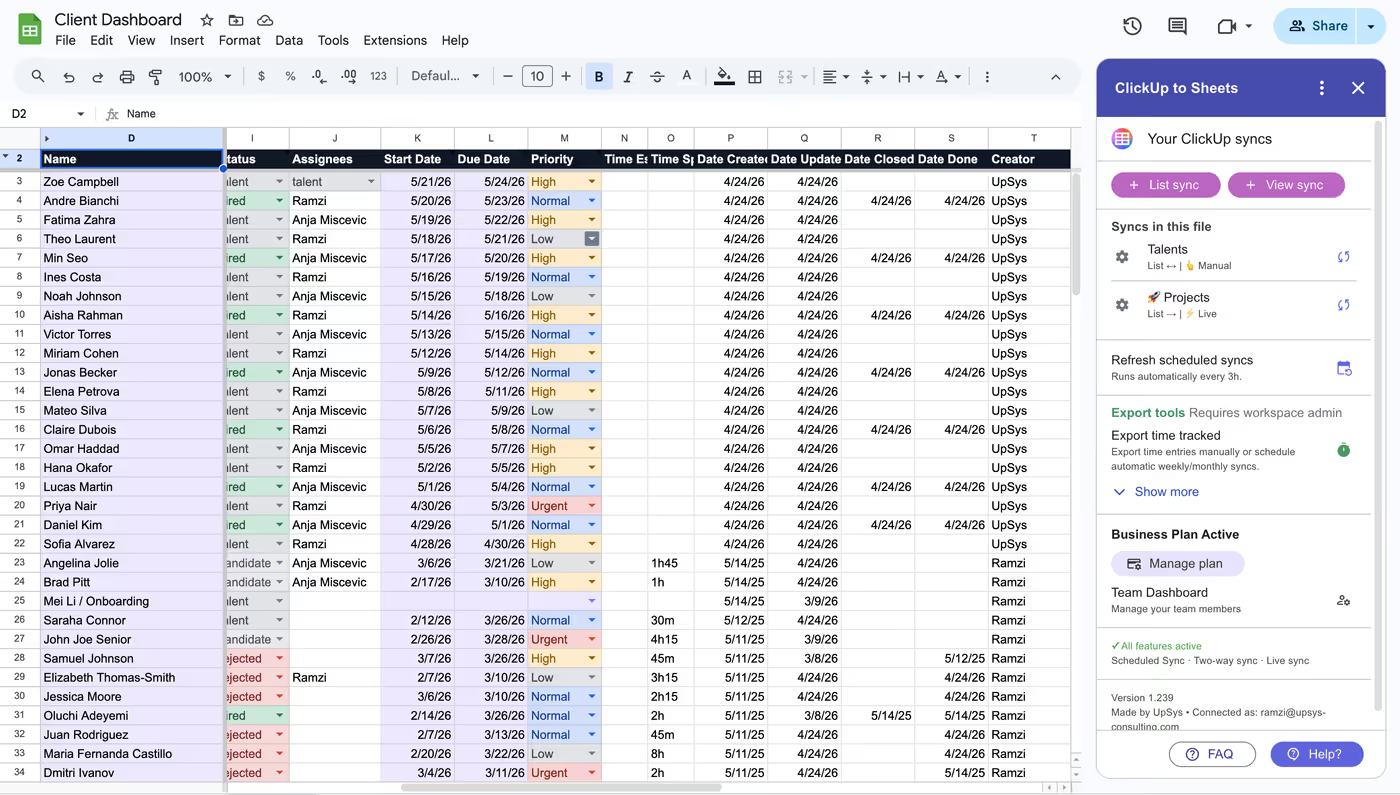
An add-on installs into Google Sheets itself, so the connection lives inside the spreadsheet rather than in a third service. You pick a ClickUp List or view in a sidebar, choose the fields you want, and the rows land in a tab.
This is what ClickUp to Sheets does. The relevant properties for this comparison:
- The Sheet is the destination and the interface. Nothing sits between ClickUp and your spreadsheet, and task data never passes through a third-party server.
- 3 refresh modes. Manual, scheduled every 3 hours, or live, where a change in ClickUp shows up in the Sheet in seconds.
- Two-way on the top plan. Edit a cell in Sheets and the change goes back to the ClickUp task, which is what makes bulk edits practical.
- Flat account pricing, from $9 a month, rather than a per-task or per-row meter.
The honest limits: it is a Google Sheets add-on, so it only writes to Google Sheets. If your destination is Excel, BigQuery, or a warehouse, this is the wrong tool.