A client wants to know where their project stands. You have the answer in ClickUp. The question is how much of ClickUp they have to see to get it.
There are 3 routes, and they expose very different amounts.
Client portal basics
A ClickUp client portal is something you assemble, and every "client portal template" you will find, ClickUp's own included, assembles the same way: a Folder or a List, a Doc and a Dashboard on top, and one sharing mechanism pointed at the lot. There is no portal product to buy and no separate client login to hand out.
That leaves exactly 2 native mechanisms, plus one that lives outside ClickUp:
- Invite the client as a Guest, so they open your workspace and see the locations you shared.
- Publish a public link to a view, Doc, or List, which anyone with the URL can read.
- Sync the data into a Google Sheet and share that instead, so the client never touches ClickUp.
The template is the easy part. The choice below is the one that decides what your client can see, forward, and edit.
Route 1: Give them a Guest seat
You invite an external email and share specific Folders, Lists, tasks, Docs, or Dashboards with them. Guests cannot be added to a Space, so the unit of sharing is always something inside one.
What it gets you. They see live data with no export step, they can comment in context, and permissions are enforced by ClickUp rather than by you remembering.
What it costs you. On the Free Forever plan there is one guest type, and ClickUp's guest documentation is blunt about it: Free Forever guests "can only have the full permissions available for the items and locations shared with them." Unlimited guests, no fee, and every one of them can edit and delete inside what you shared. A read-only client on a Free workspace is not something you can configure. The rest of the Free plan's caps sit in the same place.
Paid plans split the role in two. View only guests are free and unlimited. Permission-controlled guests, the ones you can hold to view, comment, or edit, consume a guest seat, and past that allowance each costs the same as a member subscription.
One rule catches agencies out: people who use your organization's email domain or SSO cannot be guests at all. Add them and ClickUp converts them to limited members, charged at the member rate.
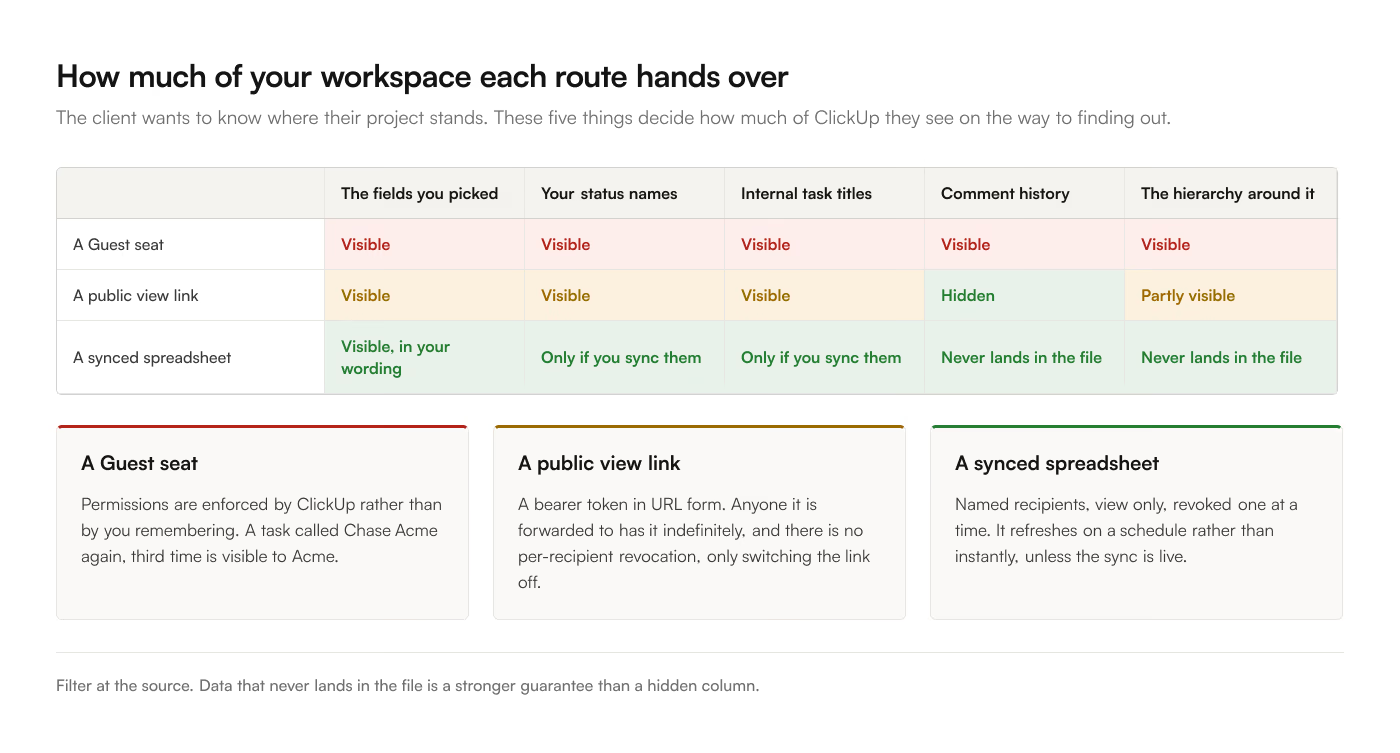
The bigger cost is structural. A Guest sits inside your workspace. They see the hierarchy above what you shared, your status names, your internal task titles, your assignee names, and any comment history on the tasks you granted. A task called "Chase Acme again, third time" is visible to Acme.
When it is right. Collaborative projects where the client is part of the working process and there is nothing to hide because you work in the open with them.
Route 2: Share a public view link
ClickUp views, Lists, tasks, and Docs can be shared publicly on every plan. Anyone with the link sees a read-only rendering, no account required.
What it gets you. The lowest-friction share there is. Live, no seat, no invitation. Filters applied to the view are carried into the public version, and tasks marked private stay hidden.
What it costs you. The link is a bearer token in URL form. Anyone the client forwards it to has it, indefinitely, and you will not know. There is no per-recipient revocation, only turning the whole link off. The settings that would tighten this are Enterprise-only.
2 smaller things bite in practice. Public pages need third-party cookies to render, so a client on a locked-down browser profile sees nothing and emails you about a broken link. And it is still ClickUp's presentation: your statuses, your column names, your task titles. You can hide fields on the view, and you cannot rebuild it into the report the client actually asked for.
When it is right. A public roadmap, a status board with nothing sensitive on it, a one-off share with a short life.
Route 3: A synced spreadsheet
Sync a filtered ClickUp view into its own Google Sheet, then share the Sheet.
What it gets you.
Only what you put in it. The sync writes the fields you chose from the view you chose. Internal notes stay in ClickUp because they were never selected.
Their vocabulary, not yours. Rename In Review to With your team for approval in a formula column. Group by phase rather than by List. Add the 2 summary numbers they always ask for.
Sharing they already understand. A Google Sheet link, with Google's own permissions: named people, view-only, expiring access, no downloading. Revoke one person without affecting the rest.
Their own analysis. Clients filter and pivot without asking you for a different cut.
What it costs you. It refreshes on a schedule rather than instantly, unless you run a live sync. A spreadsheet is a worse interface for discussion than a task with comments. And you have one more thing to set up.
When it is right. Monthly and weekly client reporting, which is most client reporting.
The comparison
|
Guest seat |
Public link |
Synced Sheet |
| Client sees internal fields |
Yes |
Only what the view shows |
Only what you synced |
| Client sees your hierarchy |
Yes |
Partly |
No |
| Client sees assignee names |
Yes |
Usually |
Only if you include them |
| Read-only is possible |
Paid plans only |
Always |
Always |
| Per-person revocation |
Yes |
No |
Yes |
| Link forwarding risk |
Low |
High |
Controlled by Google |
| Client can comment |
Yes |
No |
In the Sheet |
| Client can re-cut the data |
No |
No |
Yes |
| You control the wording |
No |
Barely |
Fully |
| Live |
Yes |
Yes |
Schedule, or live |
| Cost |
Free view-only on paid plans |
Free |
Flat |
Setting up the spreadsheet route
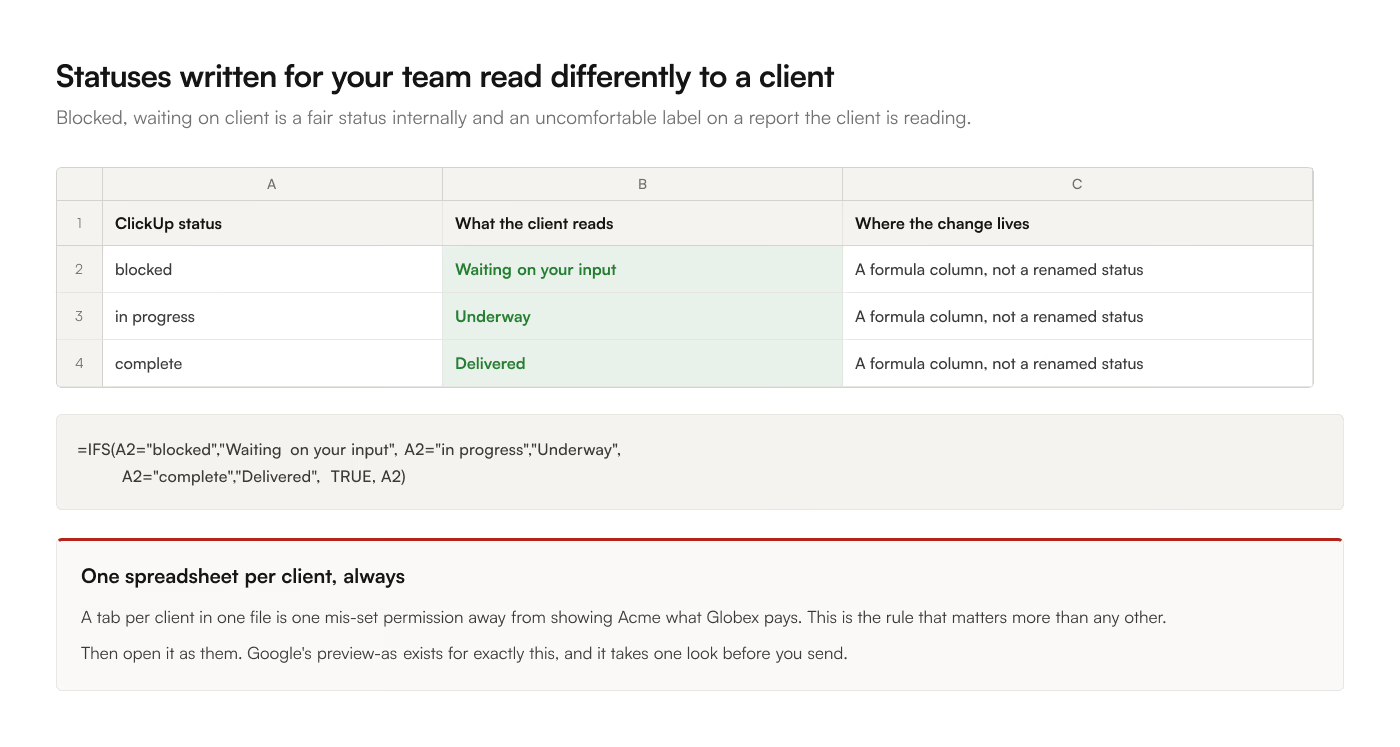
One spreadsheet per client, always. Tab-per-client in one file is one mis-set permission away from showing Acme what Globex pays. This is the rule that matters more than any other on this page.
Build the ClickUp view first. Filter to that client's work, hide the fields they should not see, and sync that view rather than the whole List. Filtering at the source means the data never lands in the file at all, which is a stronger guarantee than hiding a column.
Keep raw and presented apart. Tab one holds the synced rows and gets overwritten on every refresh. Tab two is the report, built with formulas against tab one. Hide tab one; a hidden tab is still readable by anyone who unhides it, so keep it free of anything sensitive rather than relying on the hiding.
Check what a status name says. Statuses written for internal use read differently to a client. Blocked - waiting on client is a fair status and an uncomfortable thing for the client to read as a label. Map them in a formula column:
=IFS(A2="blocked","Waiting on your input", A2="in progress","Underway", A2="complete","Delivered", TRUE, A2)
Share deliberately. Named recipients, Viewer, and turn off "Viewers can download, print, and copy" if the data warrants it. Avoid "anyone with the link", which recreates the public-link problem inside a nicer wrapper.
Then open it as them. Google's preview-as feature exists for exactly this. Look at the file the way the client will, once, before you send it.
Charts belong on the presented tab rather than in a shared Dashboard, and ClickUp Dashboards compared with Google Sheets reporting covers what that trade costs you.
Deleted rows linger
A sync that only ever adds rows leaves deleted tasks in the client's sheet forever. The client asks about a task you cancelled in March and you have no idea why it is still on their report.
Whichever route you build, confirm it removes rows for deleted tasks. ClickUp makes this specifically awkward: deleting a parent task removes its subtasks server-side and emits no event for the children, so an event-driven pipeline never learns those rows should go. More on that in the subtasks guide.
A client-facing report is the worst place to discover that particular gap, because the person who finds it is the person paying you.